The key facts
- Google Pay launched in Uzbekistan on October 19; access to Google Wallet opened on the morning of October 27
- Only Visa and Mastercard cards from nine banks are supported so far; the launch is in a test mode
- Payments require a smartphone with NFC, the NFC function enabled, and a screen lock
Service launch and wallet access
On October 19, the Google Pay payment service officially launched in Uzbekistan, and on the morning of October 27, users gained access to Google Wallet — an app for storing cards. Local bank cards can now be linked to the digital wallet and used to make contactless purchases with a smartphone. Spot.uz prepared a step-by-step guide.
How Google Pay and Google Wallet differ
These two concepts are often confused: they are related but serve different functions. Google Wallet is a digital wallet, an app for storing bank and other digital cards on your phone. Google Pay is a payment service that lets you pay for purchases with cards added to the wallet. Simply put, Wallet stores the cards, while Pay lets you pay with them.
Which banks and cards are supported
For now, the service supports only Visa and Mastercard cards, and not all cards can be linked: availability depends on the bank and card type. The launch is in a test mode, so some users may face difficulties when adding a card. At the time of Spot.uz's publication, Google Wallet supported cards from nine banks: AVO Bank (Mastercard), Octobank (Mastercard and Visa), Uzum Bank (Visa), TBC Bank (Mastercard and Visa), Aloqabank (Mastercard and Visa), Kapitalbank (Mastercard and Visa), Ipak Yuli Bank (Mastercard and Visa), the National Bank of Uzbekistan (Mastercard and Visa), and Orient Finans Bank (Mastercard and Visa). The list of banks will be expanded in the future.
How to add a card
There are two ways to add a card. The first is through the Google Wallet app, which can be downloaded if needed from Google Play: tap Add to Wallet, select Payment card, then New credit or debit card, scan the card with the camera or enter the details manually, accept the terms, and, if required, confirm the card with an SMS code or through your bank's app. The second way is through the bank's mobile app: if there is an Add to GPay button, simply select the desired card and follow the on-screen instructions.
How to pay for purchases
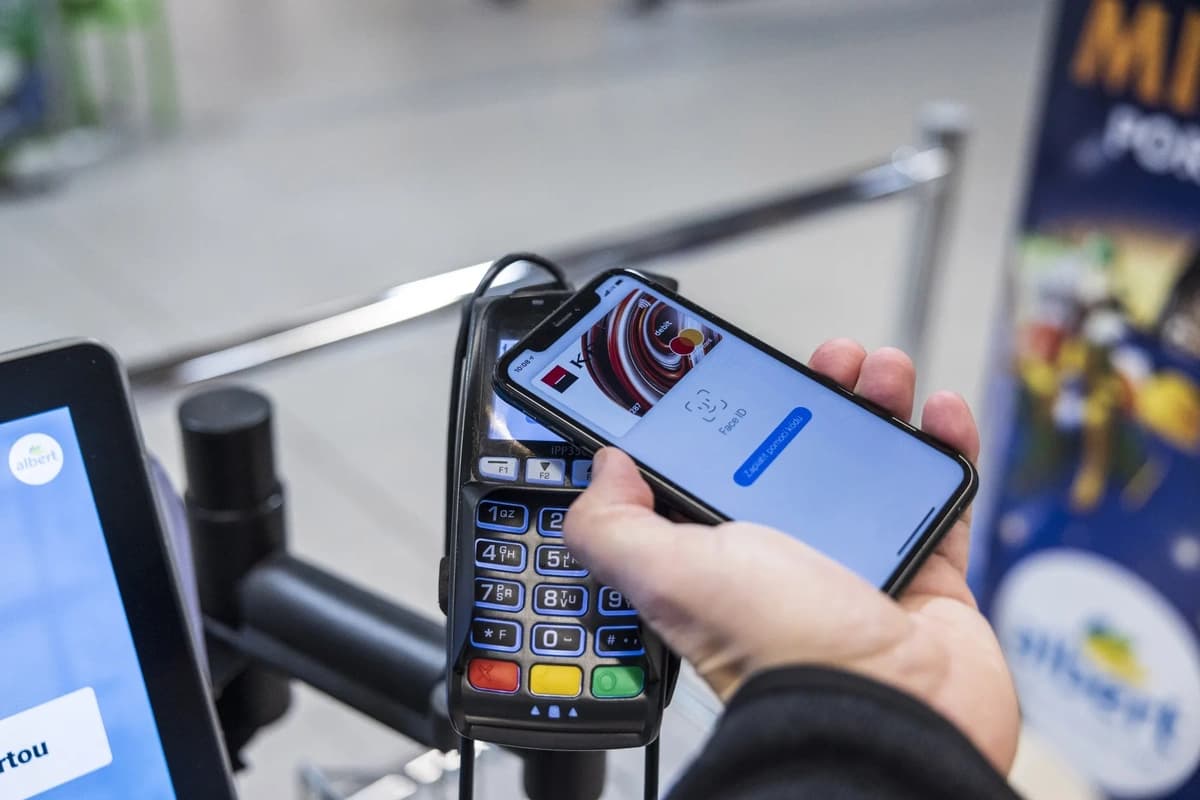
After adding a card, purchases can be paid at terminals with contactless payment via Google Pay, as well as online — by selecting Google Pay as the payment method on a supporting website or in an app. Paying with a smartphone requires four conditions: the phone must support NFC, the NFC function must be enabled, a screen lock must be set on the phone, and Google Wallet must be selected as the default payment app for contactless payments. To pay, simply unlock the screen and hold the back of the phone to the terminal; there is no need to open the app separately each time. If several cards are linked, the default one is used, but another can be selected in Google Wallet before payment.
How to enable NFC
NFC is a wireless technology that allows devices to exchange data over short distances. The enabling procedure depends on the phone model and operating system version. On most Android devices, you need to open Settings, go to the Connected devices or Connections section, find the NFC or Contactless payments option, and enable the feature.